Process Maps - product guide
This guide describes Process Maps from the point of view of people who use FlowSharp to understand, design and govern end-to-end business processes.
In short
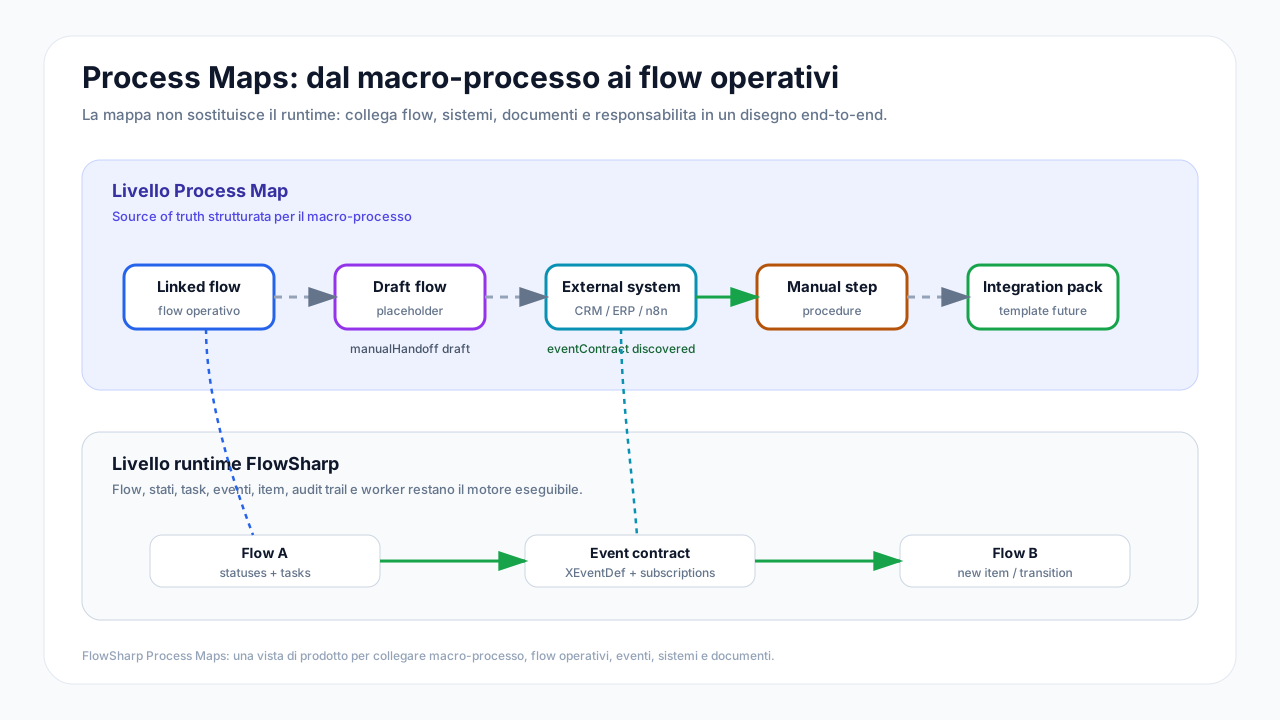
Process Maps are the level where a business process is seen in full: operational flows, departments, external systems, documents, manual steps, events and responsibilities.
A single flow answers:
"How does this object move inside a procedure?"
A Process Map answers a wider question:
"How does this process really work from beginning to end, even when it crosses multiple flows, people and systems?"
Why use them
Many real processes do not live inside a single workflow. An order, project, complaint or customer onboarding can cross several teams, tools and decision moments.
Without a map above the individual flows, it often happens that:
- the process is clear only to people who already know it;
- automations are scattered and difficult to explain;
- manual steps stay outside the design;
- events between systems are hidden;
- a demo shows single parts, but not the whole picture.
Process Maps make the company's operating system visible: not only what is automated, but also how flows, people, documents and systems collaborate.
Flow, Flow Map and Process Map
To avoid ambiguity:
| Concept | What it is for |
|---|---|
| Flow | Defines the operational path of an entity: statuses, tasks, rules, transitions and automations. |
| Flow Map | Shows one flow graphically, or the path of an item inside that flow. |
| Process Map | Connects multiple flows and other business elements in an end-to-end view of the process. |
In practice, the flow is the operating engine. The Process Map is the architecture and governance view.
What you can represent
A Process Map can contain different elements, each with a practical meaning.
| Element | When to use it |
|---|---|
| Linked flow | When part of the macro-process is already managed by a FlowSharp flow. |
| Draft flow | When you know a new flow will be needed, but want to design it in context first. |
| External system | For CRM, ERP, portals, business systems, n8n or third-party services. |
| Manual procedure | For steps still handled by people, meetings, controls or out-of-system work. |
| Document | For contracts, PDFs, checklists, forms, attachments or document packages. |
| Integration Pack | To show a reusable integration block or future standard automation. |
Not every element must be automated. A good Process Map also shows what is manual, fragile or still to be transformed.
Link types
Connections explain how one step influences the next.
| Link | Meaning |
|---|---|
| Manual handoff | A handoff designed or handled by people. |
| Event contract | A detected or declared connection between flows through an event: one flow emits an event and another flow listens to it. |
This distinction matters in demos: FlowSharp does not hide human work behind automation. It puts it on the map, so people can see where governance, integration or automation is needed.
How to use them
The typical path is:
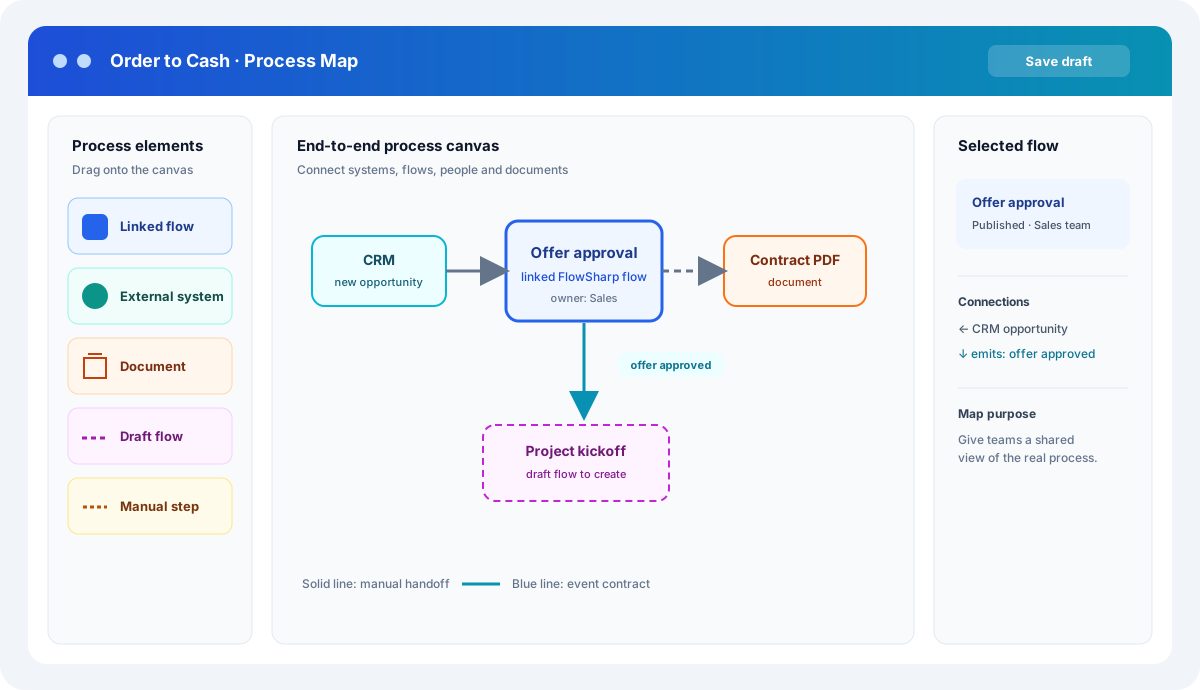
- Open Process Maps from the main navigation.
- Create a new map for the process you want to explain or design.
- Add existing FlowSharp flows.
- Add the external systems involved.
- Add documents, manual procedures and steps still in draft.
- Connect the elements to describe handoffs, dependencies and events.
- Save the map and use it as a discussion point with teams, customers or stakeholders.
- Open linked flows when you need to move from macro-process to operational detail.
Recommended working mode
A Process Map works well when built in three steps.
1. Map the real process
Start from how the process works today, not from how it should work in theory.
Add:
- where the case starts;
- which teams act;
- which systems are used;
- which documents are produced or checked;
- which steps are already managed by FlowSharp;
- which steps are still manual.
This first map creates alignment. It is normal for it to include non-automated elements.
2. Separate what is operational from what must be designed
After the first map, you can distinguish:
- existing flows;
- flows to create;
- active integrations;
- integrations to design;
- manual procedures to keep;
- manual procedures that are automation candidates.
This turns the discussion into a concrete roadmap.
3. Use the map as a bridge to execution
The map is not only a picture. It should become an access point:
- from process to specific flow;
- from flow to the maps where it appears;
- from design to real events;
- from draft to creation of missing flows;
- from demo to operational roadmap.
Demo scenario: Order to Cash
A strong demo example is Order to Cash.
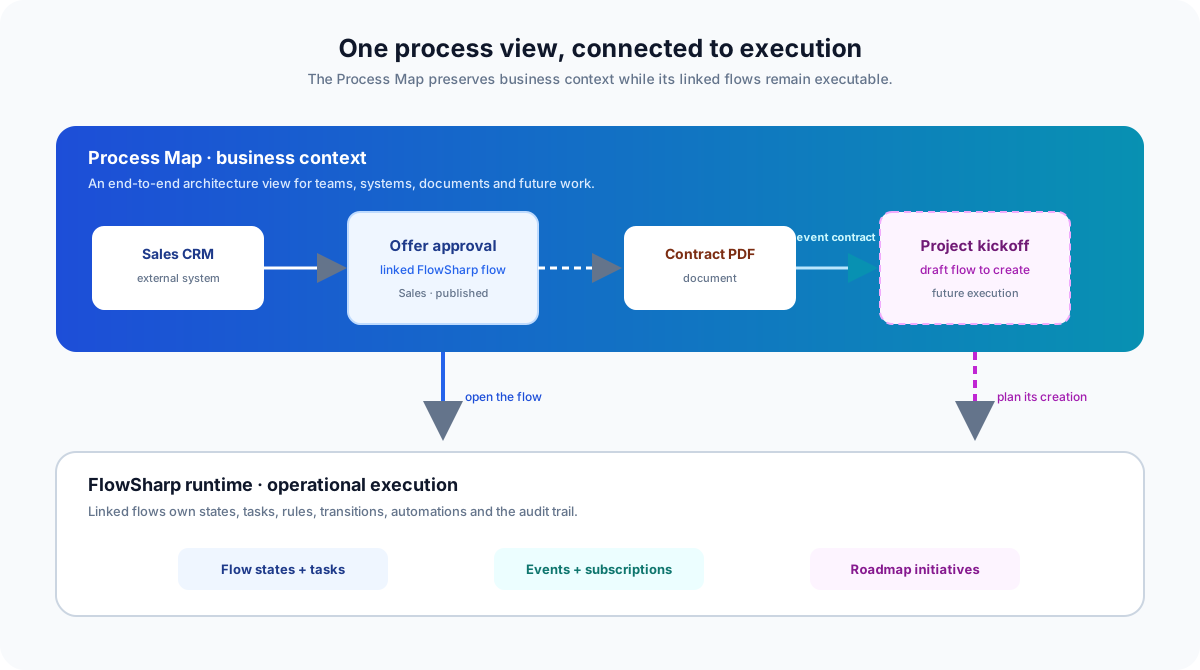
The map could show:
- Zoho CRM as the system where the opportunity starts.
- Offer approval as an existing FlowSharp flow.
- Contract PDF as a document produced or checked.
- Legal review as a manual procedure.
- Project kickoff as a draft flow to create.
- Billing as a linked flow or system.
The message:
"We are not only showing a workflow. We are showing how the company turns a sale into a governed, traceable and automatable project."
Narrative example
During a demo, you can explain it like this:
"Here we see the full commercial process. The opportunity starts in the CRM, then enters the offer approval flow. If the offer is approved, the contract is produced, goes through legal review and opens the project kickoff flow. Some steps are already automated, others are still manual: the Process Map puts them on the same level, so we can decide where to act."
This narrative is more effective than a feature list because it shows FlowSharp as a process governance tool, not only a workflow designer.
Connection auto-discovery
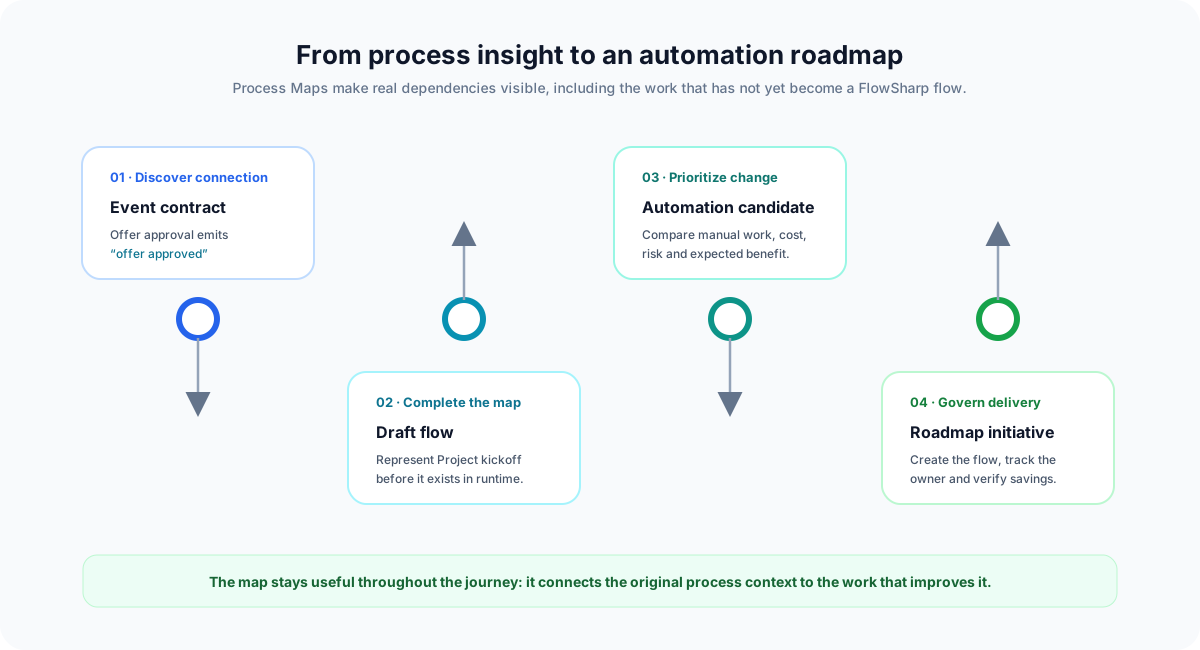
When flows communicate through events, FlowSharp can help make those connections visible in the map.
Example:
- The Offer approval flow emits the "offer approved" event.
- The Project kickoff flow is configured to start from that event.
- The Process Map can show this relationship as an event connection.
The value for the user is simple: what used to be hidden inside individual flows becomes readable at a glance.
Draft flows
During design, a part of the process often appears before it has a dedicated flow.
Instead of stopping the work, you can add it as a draft flow. The map stays complete, and you can later decide to turn that block into an operational flow.
This approach helps to:
- design the full process first;
- avoid creating flows disconnected from context;
- reveal missing parts;
- build a more natural automation roadmap.
Navigation between map and flow
A Process Map should allow movement in two directions:
- from the map to the flow, when you want operational detail;
- from the flow to the maps where it appears, when you want macro-process context.
This navigation is useful in demos and customer reviews: start from the overview, enter detail, then return to the big picture without losing the thread.
How to read a Process Map
A well-built map should quickly answer:
- Where does the process start?
- Which FlowSharp flows are involved?
- Which parts are still manual?
- Which external systems participate?
- Where do important documents enter or exit?
- Which events connect flows?
- Where is there a draft to turn into execution?
- Which steps are good candidates for automation or integration?
If the map does not answer these questions, it is probably too technical, incomplete or overly detailed.
Good practices
- Give the map a business-friendly name, for example "Order to Cash" or "New customer onboarding".
- Use linked flows only when they represent a real operational process.
- Use manual procedures without embarrassment: they are part of the real process.
- Do not turn every detail into a node. The map explains the macro-process; it does not replace the single-flow designer.
- Add documents only when they are important process points, not as an attachment archive.
- Use external systems to show dependencies, responsibilities and integration points.
- Keep the map readable in a meeting: if people need too much zoom, it may be time to split it.
Suitable process examples
Process Maps are especially useful for:
- Order to Cash;
- customer onboarding;
- project management;
- supplier approval;
- complex complaints and tickets;
- document management;
- administrative cases involving multiple offices;
- commercial processes with CRM and back office;
- quality or compliance procedures;
- processes where AI, automation and human control must coexist.
When not to use them
Not everything needs a Process Map.
If the process is already a single linear flow, with no external systems, no other flows and no relevant organizational steps, the Flow Map of the single flow may be enough.
The Process Map becomes valuable when a higher view is needed: multiple flows, multiple actors, multiple tools and multiple responsibilities.
Product message
Keep this sentence at the center:
FlowSharp connects process vision to process execution.
Process Maps make the macro-process visible. Flows make it executable. Together they turn a described procedure into a governed procedure.
For API integrators
This section is intentionally more technical and is meant for people integrating FlowSharp with external tools.
Process Maps are available under /api/v1/process-maps.
| Method | Path | Use |
|---|---|---|
GET | /process-maps | List accessible maps. |
GET | /process-maps/:id | Retrieve a map with nodes and links. |
POST | /process-maps | Create a new map. |
PATCH | /process-maps/:id | Update name, description and main metadata. |
POST | /process-maps/:id/archive | Archive a map. |
POST | /process-maps/:id/restore | Restore an archived map. |
DELETE | /process-maps/:id | Delete or disable a map depending on its status. |
PUT | /process-maps/:id/design | Save the map's nodes and links. |
POST | /process-maps/:id/new-version | Create a new version of the map. |
GET | /process-maps/:id/reconcile | Truth report: real wiring state of edges and nodes. |
POST | /process-maps/:id/edges/:edgeId/wire | Wire an edge (creates event/activation, idempotent and audited). |
GET | /process-maps/:id/activity | Real traffic: events per edge and active items per flow. |
GET /process-maps supports filtering by publish status and pagination; invalid parameters return a clear error.
Main types:
| Field | Main values |
|---|---|
node type | linkedFlow, draftFlow, externalSystem, manualProcedure, document, integrationPack, actor |
edge type | manualHandoff, eventContract |
edge origin | draft, discovered |
edge config | Wiring metadata of the edge (associated event or trigger). |
Copilot for Process Maps
The Copilot is an AI panel built into the map designer that lets you build or modify a map by describing in plain language what you want.
How it works:
- Open the designer for a map.
- Press the "Copilot" button in the toolbar.
- Type your request in natural language (e.g. "connect approval to shipping, then add a billing flow").
- The AI proposes the resulting map in BPMN-Lite text format.
- Before applying, a preview shows the diff of changes: nodes and connections added or removed.
- Apply only if you agree; Cancel leaves the map untouched.
The Copilot never applies changes automatically. The proposal always goes through the pre-apply gate (the same used by the manual text editor), so you can review and approve the result before the canvas changes.
Automatic linking to existing flows: when the AI (or the manual editor) proposes a node whose name matches a real flow in your workspace, that node is automatically linked to the flow (type linkedFlow). Linking happens only for unique name matches.
You can include previous exchange history in the same working session: the Copilot maintains context and can apply successive changes in multiple steps.
Detect connections
The "Detect connections" button analyzes the flows linked to the map and finds real event-based connections: when a flow publishes an event that another flow subscribes to, the link appears on the map as an eventContract edge with origin: "discovered".
How it works:
- Discovery runs automatically when the map is opened, with no user action needed.
- The "Detect connections" button runs discovery on demand, for example after changing a flow's event subscriptions.
- Connections that are no longer valid (event removed or subscription deleted) are flagged as "stale" rather than deleted, so you can review what changed.
- Discovery is non-destructive: manual edges (
manualHandoffanddraftedges) remain unchanged.
For API integrators, discovery is exposed at POST /process-maps/:id/discover-edges. The endpoint calculates edges to suggest without modifying the design: it returns the list of proposed edges and the client merges and persists them separately via PUT /process-maps/:id/design.
The map tells the truth: wiring verification
A Process Map is not just a drawing: it continuously compares what is drawn with what is actually wired in flows and events.
Edges are colored according to the real state of the connection:
| Color | Meaning |
|---|---|
| Green | The wiring really exists: the event is defined, and both the producer and the listener are in place. |
| Amber | Partial wiring: a piece is missing (e.g. the event exists but no flow listens to it). |
| Dashed gray | Drawn only: no real wiring behind the edge. |
| Red | Broken: the edge points to something that no longer exists. |
Flow nodes also show badges for the real start modes — manual, API Trigger, from event, from agent — read from the flow's Activation settings. The map thus tells not only the structure of the process, but also how each flow can actually be started.
The map name can be edited directly from the designer header (click the name, type, Enter). With "Show descriptions" enabled, a card with the map name and description also appears on the canvas.
Map diagnostics
A panel on the canvas lists every detected problem:
- broken links (references to deleted flows or events);
- edges that are drawn but not wired;
- events without listeners;
- real wirings that exist in the flows but are not on the map yet, with an "Add edge" button to bring them into the drawing.
Each entry is clickable and navigates to the affected element. Diagnostics turn the map into a verification tool, not just a storytelling one.
Wiring an edge
Selecting an edge opens the edge panel, which shows the connection state and lets you complete it.
On an edge from an external system to a flow, the Wire button creates the external event for you and enables start-from-event on the target flow — with explicit confirmation and without ever modifying the flows' statuses or tasks. Alternatively you can choose a direct API Trigger.
Once the edge is wired, a ready-to-copy ingestion snippet appears for the external system (the HTTP call that raises the event or invokes the trigger).
For API integrators, wiring is exposed at POST /process-maps/:id/edges/:edgeId/wire (idempotent and audited) and the truth report at GET /process-maps/:id/reconcile.
Activity on the map
The Activity toggle turns on real numbers over the drawing:
- on every wired edge, how many events passed through in the last 30 days;
- on every flow node, how many active items there are right now, using the flow's entity semantics ("3 orders in progress", "1 case in progress").
A green edge sitting "at zero" is immediately recognizable: the wiring is there, the traffic is not. For API integrators, the counts are exposed at GET /process-maps/:id/activity.
Manual work with estimated costs
Manual procedure and Document nodes can declare an estimate of the work they represent: minutes per run, cost type (€/minute or € per run), value, and runs per month. The Document node also has a direction (incoming, outgoing, transformation), shown as an arrow next to the icon.
With the Cost lens active, estimated nodes show the period cost with a ≈ prefix and a dashed border: an estimate is never confused with measured data. Diagnostics lists the automation candidates — the most expensive manual nodes per month — and flags procedures without an estimate.
Note: the BPMN-Lite text editor does not carry estimates (it only describes structure); estimates survive reconciliation anyway, like node positions.
Actor node (human)
The Actor node represents a person or role that starts a flow. Connect it to a flow to state that a human starts it.
This connection is verified too: if the flow's manual start is disabled, the edge turns red. The actor is also available in the BPMN-Lite text editor with the syntax actor "Operator".
Create draft flows from the map
Draft flow nodes (draftFlow type) can be converted into real FlowSharp flows with an explicit action. This allows you to design the full process on the map first, then fill in the details of individual flows later.
How to use it:
- From the node panel (Node Inspector), press "Create draft flow": a FlowSharp flow in Draft status is created with the node's name. The node in the map becomes
linkedFlowand the link to the flow activates. - Alternatively, you can materialize multiple draft nodes in a single action: a summary of what will be created is shown before proceeding.
Once created, the flow is accessible in the Flow Designer and can be designed normally.
For API integrators, materialization is available at POST /process-maps/:id/materialize-drafts. Passing { "nodeIds": ["..."] } in the body materializes only the specified nodes; omitting the body materializes all draft nodes without an associated flow. The response contains created: the list of flows created with the node name and the new flowId.
Filter maps by flow
To find maps that contain a specific flow, use the referencingFlowId query parameter on GET /process-maps:
GET /api/v1/process-maps?referencingFlowId=<flowDefId>
Returns only maps with at least one node (linkedFlow) linked to the specified flow. In the interface, this is used by the "Appears in maps" panel in the Flow Designer: from a flow's designer you can see which maps include that flow and navigate directly to the map (with an inline preview).
Map versions and publishing
A Process Map can evolve without losing its history. You work on a draft, publish it when it is ready to become the shared reference and, for a later change, create a new version with a note that explains why it evolved.
The version badge opens the history: from there you can compare two versions to see nodes and links that were added, removed or changed. When a more immediate narrative is useful for a review, FlowSharp can also describe the differences in plain language. Archived maps remain available as a memory of the process; restoring one returns it to an unpublished state, ready for a new review.
Publishing makes the map the reference point for authorized people, without bypassing the visibility of the Flows it contains.
Map health and notifications
A map should not become outdated silently. When a linked Flow changes — for example its start mode, publishing state or availability — FlowSharp checks the maps that use it again.
In the list, a badge immediately shows errors or warnings. In the designer, Diagnostics explains what needs attention; the notification center takes you directly to the affected map when a problem increases. Notifications remain available for 90 days, so the team has time to act without losing context.
Health is not an abstract score: it tells you whether the drawing still represents a usable process.
AI analysis and governed alerts
From Diagnostics you can request an AI analysis of the map. The analysis reads only aggregated information — health, activity, time, cost and indicators — never the contents of individual cases. It produces a ready-to-share reading that you can copy.
You can also choose, for a single map, to enable automatic analysis when health gets worse. The setting is off by default: no AI request starts without an explicit choice. If you configure an alert Flow, alongside the notification FlowSharp creates a governed case in that Flow: the issue therefore enters operational work, with ownership and history.
What-if: simulating automation
What-if mode turns the map into a working table for deciding where to automate. Activate it from the toolbar, select candidate nodes and compare in real time:
- potential monthly savings;
- the measured contribution from Flows and the estimated contribution from manual work, always kept separate;
- upfront investment, adjustable for each node;
- residual cost after automation;
- payback time.
You can start directly from the automation candidates in Diagnostics, copy a scenario summary or open the Flow simulator to investigate one step further. The scenario is intentionally temporary: it does not change the map, alter real data or save anything until you choose to turn it into a concrete action.
Expected path, deviations and actors
The map also makes exceptions in daily work visible. If a Flow declares an expected path, its nodes and indicators flag cases that departed from the intended journey. This helps distinguish a local issue from a process point that systematically creates returns or escalations.
The Actor node can also indicate the roles that start a Flow. FlowSharp warns you when a role represented on the map is not compatible with the manual start configured on the Flow, preventing maps that look plausible but cannot be used.
Exporting a Process Map as PDF
From the toolbar you can open a print view and save it as a document PDF. The document can include the map diagram, legend, linked Flows with phases and tasks, and metrics for the selected period.
It is designed to make the map useful outside FlowSharp too: process reviews, governance, handoffs, workshops or customer presentations. The PDF preserves process context instead of being limited to a canvas image.
From candidates to the Automation Plan
Diagnostics candidates should not remain mere suggestions. From a candidate, a What-if scenario or the AI Analysis report, you can create an initiative in the Automation Plan.
Creation carries the map and node context, separates measured and estimated savings and can prefill baseline cost and investment. In What-if mode, you can create one initiative for the whole scenario or one for each selected node.
The map recognizes initiatives that are already open:
- a candidate in progress shows its status;
- repeated creation does not produce duplicates;
- a rejected candidate does not keep returning as if it were new;
- the map's Automation panel lets you open the governing item and verify savings when the initiative goes live.
The global Plan page brings together initiatives from every map, while the Process Map preserves the exact point at which the opportunity was identified.
Cost baselines and Saving Challenges from the map
From Process Map settings, an Admin can build a baseline over the perimeter represented by the map. The wizard proposes measured costs for Flows and estimated costs for manual procedures or documents, always keeping the difference visible.
The path is:
- choose the observation window;
- review volumes, costs and quality warnings;
- provide a reason for any manual correction;
- freeze the baseline, making it immutable from that point;
- simulate terms or create a premium Saving Challenge.
A new map version does not alter an already frozen baseline. Challenge health instead flags when a Flow in the perimeter has been archived, deleted or never published, so the contract does not silently lose its context.
Protected versions and concurrent work
A published version is read-only in both design and metadata: changing nodes, edges, name, description, owner or operating settings requires a new version. Comparisons, PDFs and baselines therefore continue to reference a stable artifact.
On drafts, every save uses the map revision from which the user started. If someone else saved in the meantime, design, name, description, version note and alert settings are not overwritten: FlowSharp reports the conflict and reloads the current revision.
Edits made while a save is in progress remain in the local buffer. Before exporting JSON, FlowSharp also warns when unsaved changes exist, because the export always represents the latest persisted revision.