All the work in progress, in one place. With its history.
Every case has a state, owners, an origin and a complete timeline. No more work scattered across emails, chats and spreadsheets.
The operations workbench is also included in Free. The AI Summary is optional and requires AI, available from Optimize.
- For
- Operator
- Process owner
- Management
The problem
Real work is scattered: an order sits in an email, the document in a shared folder, the approval in a chat. Nobody can tell at a glance what is stuck, for how long and why. When something goes wrong, reconstructing who did what takes hours. The department head asks for updates by voice, the operator searches through messages and attachments, management trusts a sheet someone updates when they have time. Every handover scatters a piece of context, and exceptions, cases that deviated, sit in a queue or stalled on an automation, surface only when the customer raises the issue. The FlowSharp workbench brings everything into one place: every case is an object with its own history, and exceptions have dedicated filters.
New
In progress
Stage blocked · Stalled
Check
How it works
1Choose the view
Table, Kanban or calendar (by start date, due date or completion date). Filters by flow, stage, assignee, period and lifecycle. The same set of cases can be read in whichever way suits the person looking at it.
2Find exceptions at once
Dedicated filters: cases deviated from the expected path, in WIP queue, with a stalled automation, scheduled, awaiting confirmation, overdue. You do not have to build queries: the most common categories of problem already have their own filter.
3Open the detail
State, data, active tasks, possible transitions, origin, related cases, score and outcome. The AI Summary (a traffic light and a few sentences) tells you where things stand, for anyone who needs the picture without reading the whole history.
4Read the timeline
Each row says who or what acted: a person, a rule, a timeout, an event, an API key, "Mario via AI assistant" or "FlowSharp Support". Precise attribution makes a case's history a reconstruction, not an investigation.
Specifications
| Views | table · multi-version Kanban · calendar |
|---|---|
| Export | CSV up to 50,000 rows, with a "Start outcome" column |
| Team views | saved by the designer, with per-user customization |
| Case origin | manual, API, MCP, Flow Agent, event, sub-process, scheduled, demo |
| Real time | cases, tasks, notifications and dashboards updated live |
| Search | ⌘K across 10 sources; for cases, title and reference only |
| Accessibility | keyboard-usable Kanban, with screen-reader announcements |
An operational example: an operator's day
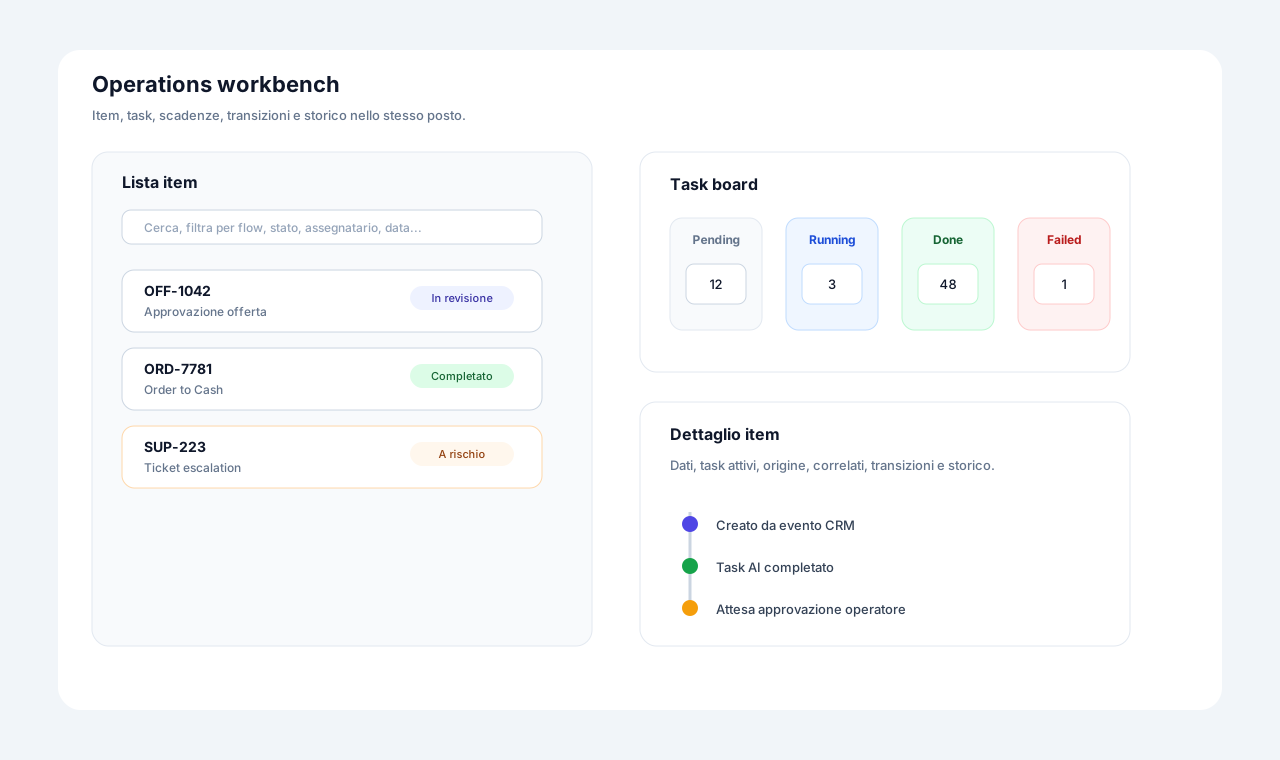
The operator opens the workbench and finds the Kanban view with the columns New, In progress, Waiting and Closed. A P1 case is awaiting data and marked as deviated: the color and label say so without opening it. They open it and read the timeline, which attributes each step to who did it: a person created the case, a rule assigned it, a timeout generated an escalation, Mario acted through an AI assistant and FlowSharp Support intervened at another point. Every row therefore has a recognizable author. The workbench is also available in Free; the AI summary of the case requires an edition with AI. The diagram beside it is illustrative, with phase columns and warning signals, and is not an official screenshot.
How to verify the state of the work
To tell whether work is under control, watch three signals. Cases with warnings, such as awaiting data or deviation, show where something is not flowing. The Waiting column shows what depends on others, and if it swells it is worth asking why. Each case's timeline lets you verify who did what and whether the action was human, automatic or via an AI assistant. For a manager this amounts to a check without questioning anyone. For governance it matters that actions by agents and support are distinguishable from those of people: whoever reads the timeline does not have to guess. If a case was forced or corrected, the change appears with its trace. The AI summary, where available, speeds up reading but does not replace the timeline, which remains the complete, attributed source of what happened.
Related features
- Case detail and "who did what" timelineEvery history line says who or what acted, down to the person behind an AI assistant.
- Accessible multi-version KanbanStages with the same name across versions merge into one column, with a version badge.
- AI case summaryA green, amber or red light with a few sentences based on data, history and notes.
- Tasks page and "My tasks"Five statuses, a filter for your work and notifications that open the task directly.
- Global search ⌘KA search across 10 sources that respects role visibility and never reads case data.
- Dashboard and real timeKPIs, distribution by stage, times per stage and at-risk cases, updated in real time.
Use cases
Frequently asked questions
Does an operator see all cases?
No: they see the flows their role can start and the cases or tasks within their remit.
Can I create a case from a form?
Yes: if the flow has a data schema, the guided form applies types and required fields.
Is the AI Summary mandatory?
No, it can be turned off per organization, flow or stage. When active it follows the organization's language.
Can I work from a phone?
The interface is responsive, Flow Agent included.