Change the process without breaking work in progress.
Every published version is an immutable snapshot. Before going live, FlowSharp verifies that the process can really finish.
- For
- Process owner
- IT
- Compliance
The problem
In many tools, editing a workflow means editing it for everyone, including cases already started. Or you discover in production that a branch has no exit and cases stay stuck forever. And when an auditor asks "which version of the process handled this case?", there is no answer. The process becomes something nobody dares touch: every improvement is a risk, every urgent fix is made bare-handed on the live system, and the history of changes is reconstructed from memory. FlowSharp separates design work from execution: you design on a draft, check before publishing, and every published version stays exactly as it was.
v1
Archived
v2
Published
v3
Draft
How it works
- 1
One draft per family
You work on the draft while the published version keeps running. Editing a published version automatically creates a new draft, so there is no way to touch production by mistake.
- 2
Checks before publishing
FlowSharp verifies that at least one end state is reachable and that there are no dead ends, meaning non-final stages with no way out. It considers every channel: human choice, rules, timeouts, WIP, iterations, events, SLAs. It also checks timeouts with no destination, unsafe scripts and automations with no way out.
- 3
Navigable warnings
Every problem has a "Go to state" link that takes you straight to the spot to fix on the canvas. If the Publish button is disabled, it tells you why: there is never a block without an explanation.
- 4
Cases stay on their own version
New cases use the new version; cases in progress finish their journey on the version they were born with. Work already started does not change rules halfway through.
Specifications
| Lifecycle states | Draft · Published · Unpublished · Disabled · Archived |
|---|---|
| Termination checks | reachable end state, no non-final dead ends, automation fallbacks |
| Other checks | timeouts with a destination, no self-loops, script safety lint |
| Post-publish diagnostics | invalid tasks, with automatic repair at startup and every hour |
| Co-design | revision check: no silent overwrites |
| Portability | flowsharp.flow/v2 export, import as a new draft version |
An operational example: three versions of one flow
A flow has an archived v1, a published v2 with 128 cases running and a v3 in draft (illustrative values). The team works on v3 without interfering with the 128 cases of v2, which keep following the rules they were born under. When v3 is ready, publishing starts. The checks verify that the end state is reachable and that there are no dead ends, meaning states with no exit, and they flag anomalies, for example a timeout without a destination: in that case the fix is to set Go to state. Only when the checks pass does v3 become the published version and v2 takes the role of previous version. The diagram shows this timeline with the draft branch beside the published version, schematically and not as an official screenshot. The advantage is being able to change a live process without breaking work already started.
How to verify a publication
After publishing, check three things. First, that the version marked as published is the expected one and that the previous one shows as archived or in use only for cases already started. Second, that the publishing checks did not flag warnings that were ignored: a warning about a timeout without a destination, for example, is the kind of detail best closed before, not after. Third, that new cases are born on the new version while running ones continue on the old one, so no work changes rules halfway. For governance, every publication leaves a trace with the version and the person who performed it, useful when a reviewer asks since when a rule has been in force. If something goes wrong, the previous version stays consultable and a new corrective draft can be prepared without losing history.
Related features
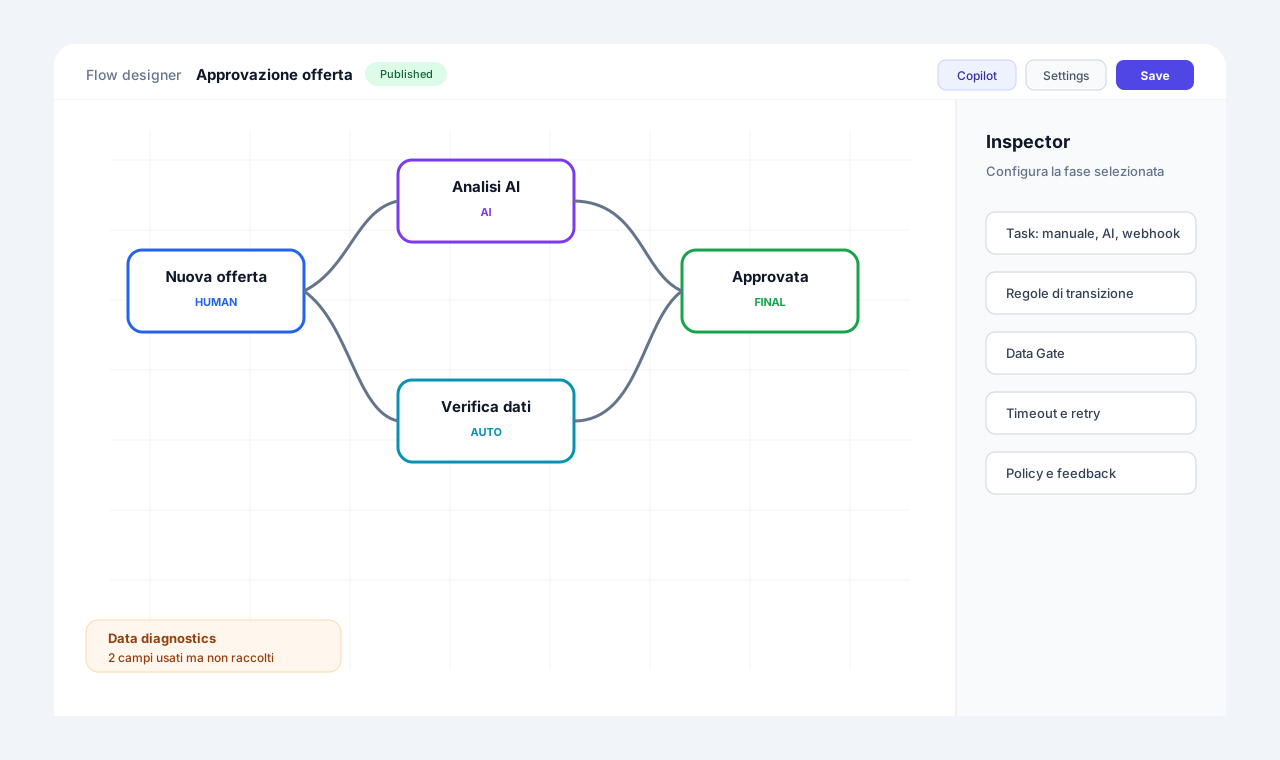
- Visual flow designerA canvas where stages are nodes and transitions are links, with all the detail in the side panel.
- Portable flow export/importOpen JSON format with an "all or nothing" pre-check.
- Immutable history and atomic auditCase history is write-once, protected at database level.
- Map versions with a story of the differencesFrom draft to published to new version with a note, and a comparison described in natural language.
- Share with a temporary linkA public link to a snapshot of the flow, expiring from 30 minutes to 30 days.
Use cases
Frequently asked questions
Can I edit a flow while it is in use?
Yes: you work on a draft, and cases in progress do not change.
What happens to older cases when I publish?
They carry on with their own version. The Kanban merges same-named columns and shows the version badge.
Can two people work on the same flow?
Yes, with overwrite protection: in case of a conflict, local changes are preserved.
Can I go back?
Earlier versions stay available to consult; you can republish them or create a new one starting from them.